Showing posts with label TIPS. Show all posts
Showing posts with label TIPS. Show all posts
Wednesday, February 22, 2012
Tips on Choosing the Right Web Hosting for Your Business Website and Online Business: Cheap vs. Affordable
Saturday, October 15, 2011
Super fast instant search using CloudMagic

CloudMagic's lightning-fast search tool has impressed me since I reviewed a previous version over a year ago. I like its speed, I like its layout, and I like the feature added to its latest version: Twitter search.
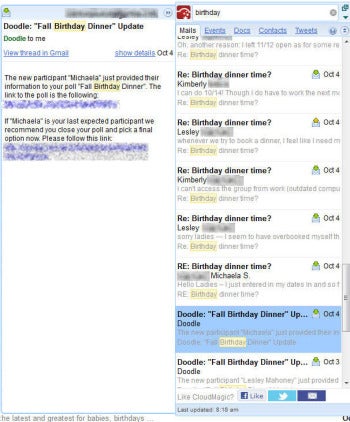 CloudMagic uses a tabbed system that makes it easy to view results from multiple sources.This browser extension for Google Chrome and Mozilla Firefox still searches your Gmail, Google Apps Email, Google Docs, Google Calendars, Google Contacts accounts, too. Once installed, it appears as a small search bar on the upper right side of your Gmail, Google, Google Docs, or Twitter window. You manually add any accounts that you'd like CloudMagic to index by supplying your name and password. As with previous versions, this iteration of CloudMagic stores this information locally, on your PC.
CloudMagic then begins indexing your accounts, which can take some time if your accounts are sizable. It took several hours to index a Gmail account containing 7 years of messages, but only a few minutes to index a newer Twitter account. You can begin searching right away, but waiting until the indexing process is complete will deliver more accurate results.
Easy Way Speeding Up Mozilla Firefox
Work more efficiently in Firefox by clearing the downloads list, removing old Java Consoles, and switching to newly opened tabs.
For the last couple weeks I've been focusing on Windows basics ("Windows Explorer Explained: Tips for Newbies" and "Windows Explorer Tips: Select Files Fast, Show Extensions, Rename Setup Files"). This week let's move on to a new topic: getting Mozilla Firefox to run more efficiently. Read on if you've ever been frustrated by slow performance in Firefox.
Sunday, August 22, 2010
Installing Windows XP using USB DISK

To install Windows by using the Flash disk, the thing you have to prepare and do the following:
1. Flash disks are in good condition, (minimum of 2 Gb)
2. Windows XP installer (these tips apply only to Windows XP, vista and win fatherly yet tested ihih 7) store in one folder, with name conthnya MasterWindows
3. App PeToUSB & USB_prep8 <<=DOWNLOAD
Following steps:
1. Download both files above. once completed, collected in a folder ... (but not in a Master folder Windows)
2. Plug in a USB flash drive, (also make sure your USB drive is in good condition)
3. Open that folder, then run the file usb_prep8.cmd
4. Settings: Enable Disk Format with LBA FAT16X
5. No need to disturb the other options
6. Click Start, and confirm to format pendrive
7. after formatting is complete, continue with next step
8. then typing the field number to be altered to press enter ...
9. changing the type of flash on the field 0) to Change Type of USB-Drive, currently [USB-Harddisk]
10. The next field 1) is to notify to the folder where the program MasterWindows
11. field 2) do not need to be changed
12. field 3), type the path where your flash drive, eg C:
13. field 4) to begin the process
14. wait until it begins ..... approximately 15 minutes, because the process is much .....
15. confirm all that was asked with "Y" or Yes or OK
If everything goes as it should, it means you now have a flash that can install Windows ....
# Note: to be able to install the flash:
• plug flash first before the computer is turned on
• start computer
• enter into BIOS
• enter the BOOT settings
• setting the BIOS to read or flash Usb agan first ... usually in the BIOS will be written Flashdisknya name or something ... eg Transmemory
• If you do not find in the BOOT settings, go to the hard disk type or whatever his name ... because the BIOS is of many kinds.
• on the hard disk type, select the USB-disk in the first place ... after a new hard disk ...
• exit the BIOS menu press F10 or save your settings beforehand
Feel the difference in speed disk to install Windows with Flash


